
Viewing Completion Stats in WordPress
WPComplete provides several ways to view student progress and engagement directly within the WordPress admin area. These built-in statistics help course creators track how many learners are completing lessons and engaging with content across the site.
Dashboard Stats
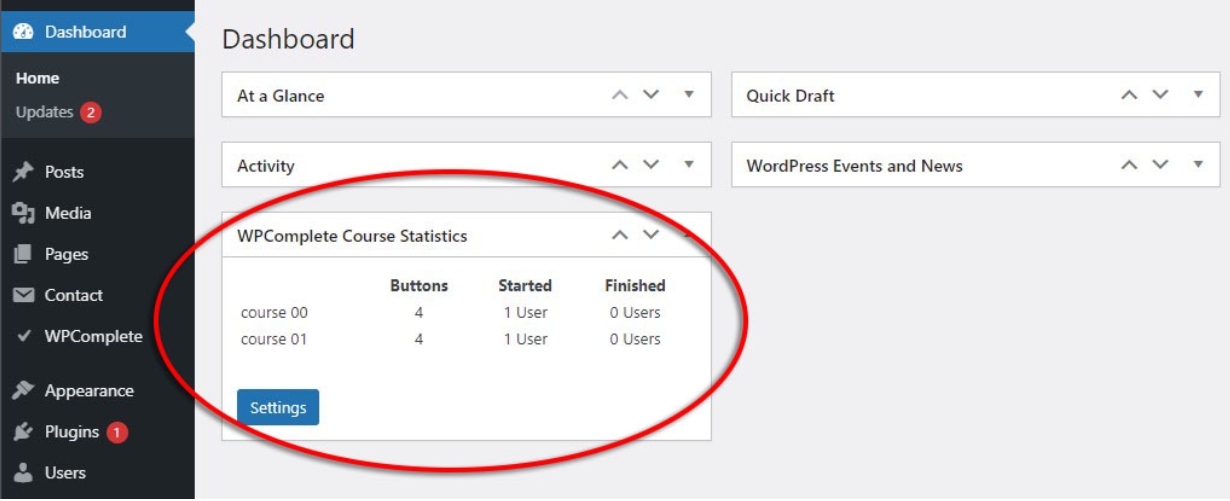
From the WordPress Dashboard, WPComplete displays high-level stats for each course, including the number of students enrolled and the number of students who have completed the course
Note: To disable this widget, go to WPComplete > Settings and uncheck “Show Statistics Widget on Dashboard.”
Content List Stats
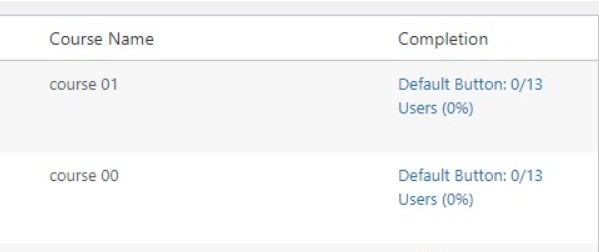
In the All Pages, All Posts, or custom post type listing screens, an extra column is added to show:
- The number of “Completed” buttons clicked
- The total number of WPComplete buttons available for that content
This makes it easy to compare engagement across different lessons or modules at a glance.
User List Stats
From the Users screen in the WordPress admin, WPComplete shows:
- The number of completable items started by each user
- The number of items completed
This gives a quick overview of individual user progress across all completable content.
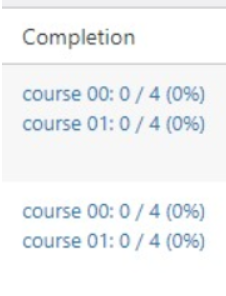
On the list of users, you can see the number of completed buttons vs total buttons, per user.
Conclusion
WPComplete’s built-in statistics make it easier to monitor student engagement, completion rates, and progress, right from within WordPress. Whether checking high-level course stats or drilling into user-specific data, these insights help instructors better understand how learners interact with their content.

